
Create Quotes from PDFs with Quick Create AI
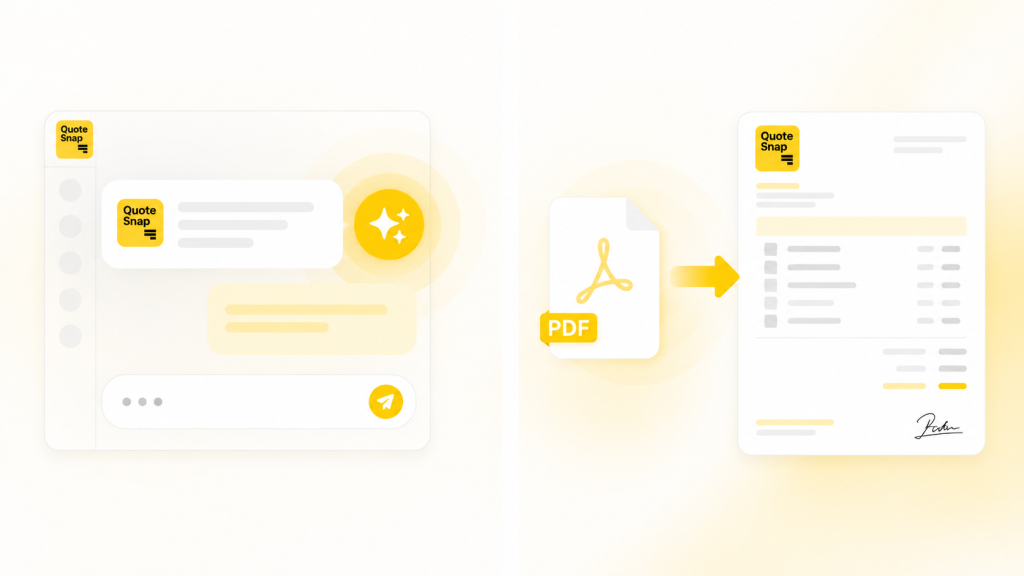
Manually re-entering quote details line by line from customer files slows down your sales cycle and introduces avoidable friction. When buyers submit requests as attachments or your sales team receives existing quote documents, typing out products, quantities, prices, and customer information by hand consumes valuable administrative hours.
QuoteSnap addresses this operational bottleneck with Quick Create AI – a new feature designed to convert imported quote documents directly into formal, actionable quotes in seconds.
How Quick Create AI Converts PDF and Image Files into Formal Quotes
Managing incoming quote requests is now significantly faster with automated document parsing built directly into your quote creation screen. Rather than building quotes from scratch, QuoteSnap extracts data from your uploaded files to populate line items and customer information automatically.
- Multi-Format File Import: Upload quote documents in
.pdf,.jpg, or.pngformats directly from your computer. - Automatic Line-Item Extraction: The system reads the imported file and automatically fills in product names, quantities, unit prices, and customer details.
- Pre-Send Data Verification: Retain full control by reviewing and verifying extracted customer details, product lines, and pricing before sending or processing the quote further.
Why Automated PDF Quoting Speeds Up Sales for Shopify Merchants
Prompt response times and reliable pricing are critical for closing wholesale and custom orders. Removing manual data entry friction helps merchants respond to buyer requests quickly while maintaining data accuracy across the sales pipeline.
- Faster Quote Turnaround: Cut down administrative overhead so your team can deliver formal quotes to buyers shortly after receiving their request files.
- Reduced Manual Entry Errors: Pulling quantities, line items, and custom pricing directly from customer documents prevents common typos and calculation mistakes during quote setup.
Step-by-Step: How to Import a PDF and Generate a Quote in QuoteSnap
Quick Create AI is available directly inside your app dashboard with no extra setup required. Follow these steps to generate a formal quote from your incoming customer files:
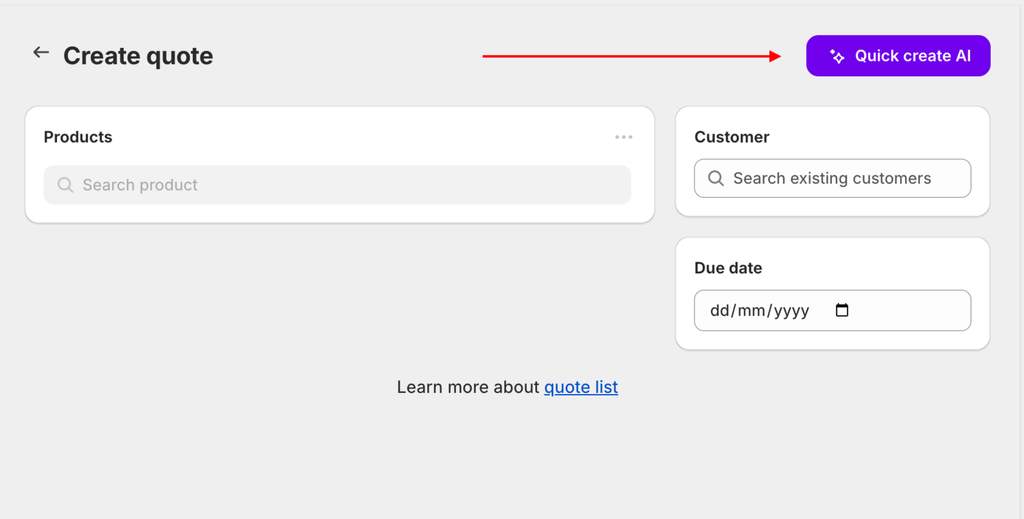
- Navigate to Quote Creation: Open the Submission list (or your quote creation screen) and click Create quote.
- Launch Quick Create AI: In the top-right corner of the Create quote screen, click the Quick create AI button.
- Attach Your Document: When the “Import file to create a quote” dialog appears, click Add file and select your
.pdf,.jpg, or.pngfile. - Generate Quote Details: Click the Create button to let QuoteSnap process the document and populate the quote fields automatically.
- Review and Send: Check the generated products, pricing, and customer information to confirm everything was read accurately, then proceed to finalize and send your quote.
Give Quick Create AI a try on your next quote request to eliminate manual typing. If you have questions or feedback, reach out to the QuoteSnap support team.
