
Shopify B2B Registration Form: Build, Review and Approve Buyers
Collecting wholesale applications through a contact form or a shared inbox means retyping every buyer into Shopify and checking by hand whether their company already exists. A Shopify B2B registration form removes that busywork and keeps applications in one place.
QuoteSnap B2B now ships an updated Registration workflow. You can build the form, receive applications from your storefront and approve each buyer into a Shopify Company, with built-in handling for duplicates and for buyers who have no company at all.
Shopify B2B Registration Form Builder: What’s New in QuoteSnap B2B
The update covers the full path from a buyer’s first application to an approved account.
- Form builder: edit fields and labels, mark each field required or optional, and add custom fields for your own wholesale terms.
- Three placements: show the form on a Registration page, a Product page or an Account page.
- Registration management: sort applications into Pending Review, Approved, Declined or All, with search and sorting.
- Approval and duplicate handling: approve new buyers and existing Shopify customers, and resolve duplicate emails or companies with Merge or Create New.
- D2C registration: Company name is no longer required, so individual buyers can apply too.
Why a B2B Registration Workflow Saves Time and Protects Your Data
- Less manual entry: applications arrive in one list, and approving a new buyer creates the Company, a Head office Location and the first contact for you.
- Cleaner records: duplicate checks flag matching emails and company names before they turn into extra Companies or contacts.
- Pricing stays in your hands: approval gives a new Company no B2B pricing by default. The buyer pays storefront prices until you assign pricing.
- One flow for B2B and D2C: the same form can accept business buyers and individuals.
- Safe changes: editing, turning off or deleting the form does not change registrations that buyers already submitted.
How B2B Registration Works From Storefront to Approved Buyer
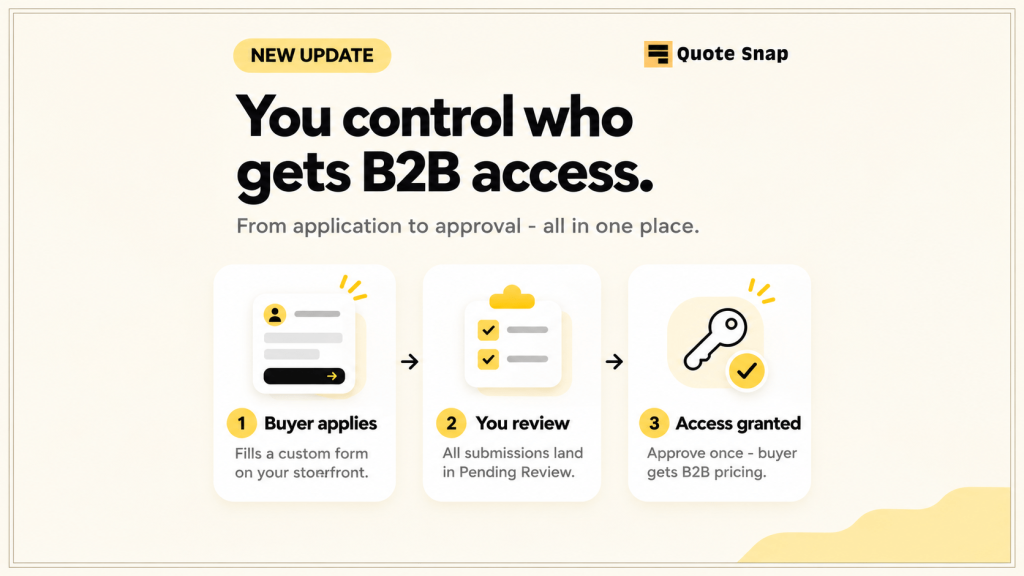
- Buyer applies: a buyer fills in the form on your storefront.
- Registration is queued: each submission appears under Registrations as Pending Review.
- You decide: approve or decline it, or turn on auto-approval so registrations from new customers are approved on submit.
- Buyer is set up: approved buyers join a Company in Shopify, or become a Shopify customer if they did not enter a company.
Step-by-Step: Create and Publish Your Shopify B2B Registration Form
Quick setup (6 steps)
- In QuoteSnap B2B, go to Registrations, click Create form and choose a form type: B2B registration form or Multi-step form.
- In the Form tab, add a title and set up your fields. Change labels, set fields as required or optional, drag them into order and add custom fields.
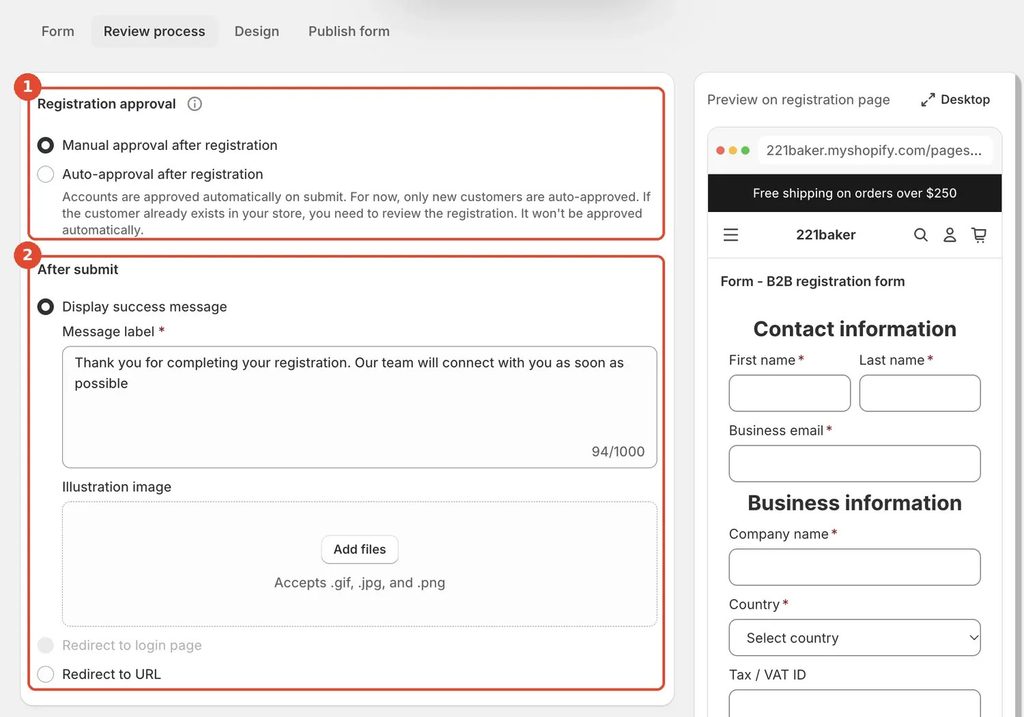
- In the Review process tab, pick Manual approval after registration or Auto-approval after registration, then choose what buyers see after they submit.
- In the Design tab, adjust colors, sizes and the button so the form matches your store. This step is optional.
- In the Publish form tab, choose where the form appears: a new page, the Product page or the Account page. For the last two, add the QuoteSnap B2B app block to your theme.
- Click Save. Saving makes the form live, and Preview lets you check it on your storefront.
Review and approve a registration
- Open Registrations and filter by Pending Review, Approved, Declined or All. Search or sort to find an applicant.
- Click the applicant’s name and check the details. The Company card shows what approving will do.
- Click Approve, or choose Merge or Create New when QuoteSnap flags a duplicate. Click Decline to reject the application.
Resolve duplicates with Merge or Create New
- Duplicate email: when the email is already a contact at a Company, the registration is tagged Existing contact. Merge keeps the buyer at their current Company, or you can create the new Company and move them.
- Duplicate company name: a matching name is tagged Duplicate. Merge adds the buyer to the existing Company as a contact, or Create New makes a separate Company with the same name.
- Existing Shopify customer: approving uses the existing customer and keeps their order history.
Moving a buyer between Companies removes their access to the old Company’s pricing and orders, so QuoteSnap shows a warning first. Check with the buyer before you confirm.
Accept D2C registrations without a company
To accept small shops or individuals, make Company name optional or remove it from the form. A registration with no company name is a D2C registration. Approving it creates a Shopify customer, or reuses the existing one, and no Company is created.
Rules and Limits for B2B Registration Forms
- One form at a time: you can run a single Registration form.
- App block for two placements: the Product page and Account page need the QuoteSnap B2B app block in your theme. You can save first, but the form does not appear there until the block is added, and you will see a warning.
- Auto-approval covers new customers only: if the email already belongs to a customer in your store, you review the registration yourself.
- Merge keeps current details: merging into an existing Company does not copy new details, such as a new Tax / VAT ID. Update the Company in Shopify if you need them.
- Deleting a registration is limited: it removes the registration only, not the Company or customer created from it.
Start Using Shopify B2B Registration Forms Today
The updated Registration workflow is live in QuoteSnap B2B. Open Registrations in the app to create your form, or follow the full walkthrough in the QuoteSnap B2B help center article.
Collect and approve B2B buyers on Shopify
Build a registration form, review applications and approve buyers into Companies with QuoteSnap B2B.
Try Quote Snap B2B free