
Shopify B2B Pricing by Location, Not Just by Company
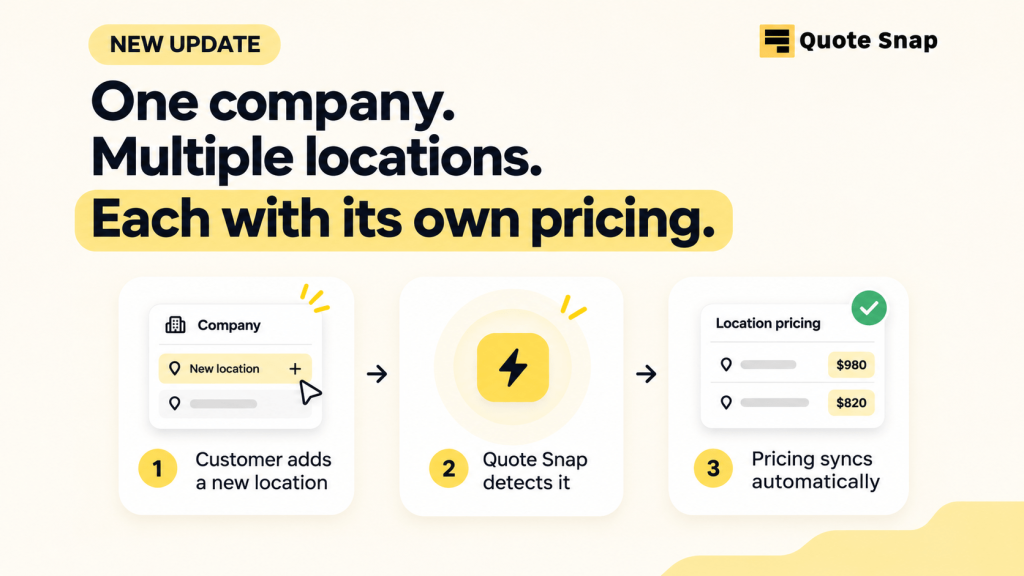
Your B2B customers rarely buy from one address at one price. A distributor has a head office, three regional warehouses and a branch that negotiated its own volume deal. Every time they add a location in Shopify, someone on your team has to remember to set its pricing, and that follow-up is where wrong prices slip into quotes.
Quote Snap B2B now supports Shopify B2B pricing by location. You can price each branch on its own terms, sync new Shopify locations automatically, and build price lists from the quotes you have already closed. Your pricing structure now follows your customer structure.
Company and Location Pricing Now Works Per Branch in Quote Snap
This update changes three parts of the B2B workflow: how you add companies, how you assign pricing, and where your price lists come from.
- Add companies without pricing first: Adding a company from Shopify no longer asks for a price list. Add one company or several at once, then set pricing when you are ready.
- New Shopify locations sync on their own: Turn on location syncing and any location the company adds in Shopify later appears in Quote Snap without manual follow-up.
- Each location gets its own pricing: Assign multiple Base pricing and Quantity pricing rules to a company or to individual locations, using All locations or Specific locations.
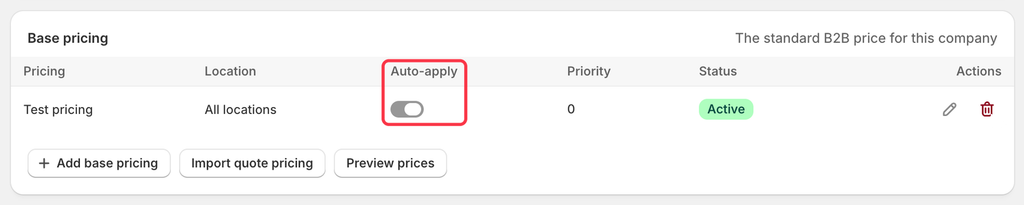
- Auto-apply to future branches: The option Automatically apply this pricing to locations added later gives every new location the right pricing from day one.
- Price lists built from closed quotes: Quote Snap pulls the most recently agreed price for each product, per location, and turns it into reusable Base pricing.
Why a B2B Price List per Location Prevents Pricing Mistakes
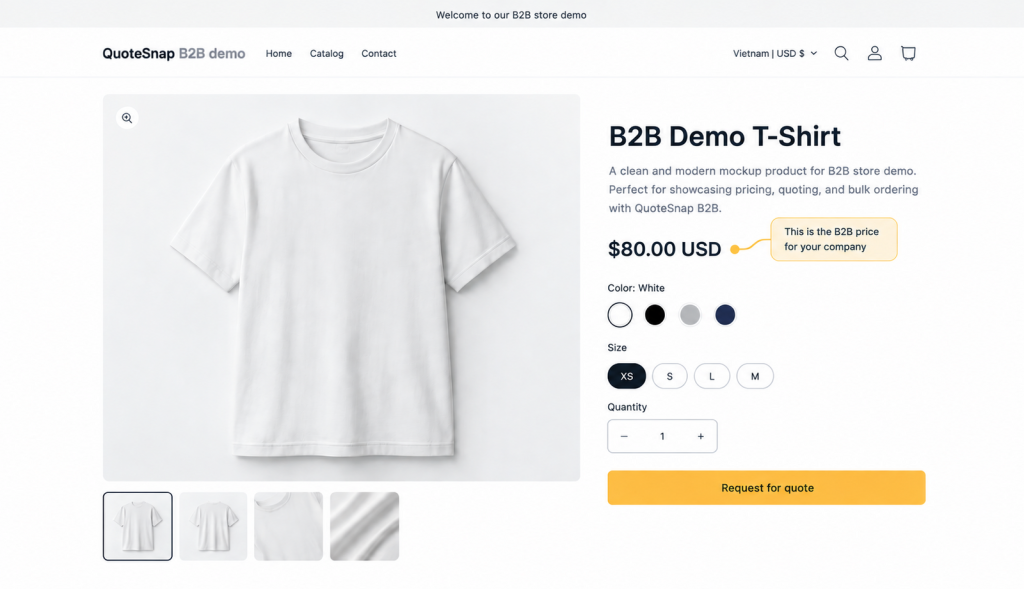
Most B2B pricing errors are not about the wrong discount. They come from the right discount reaching the wrong branch, or a new branch getting no agreed rate at all. Location pricing removes the manual steps where those gaps appear.
- Faster company onboarding: Pricing no longer blocks onboarding. Add the company today and configure rates later, or in bulk.
- The agreed rate for each branch: Branches with different volume agreements keep separate pricing under one company.
- No unpriced new locations: With auto-apply on, a branch added next month inherits the right pricing without anyone touching it.
- Reuse negotiated prices: The rates you already closed in quotes become pricing rules instead of being retyped by hand.
How Shopify Company Location Pricing Looks in Your Admin
Open a company in Quote Snap and its Pricing tab shows two sections, Base pricing and Quantity pricing. Each assigned pricing lists its Location, Auto-apply setting, Priority and Status, so you can see at a glance which branches are covered and which pricing will flow to new locations.
- Clear scope labels: The company or location now appears after each pricing name, so you know who a price list applies to before you open it.
- Pricing from the Location page: Add, edit, change or remove pricing directly on a location, without going back to the company.
- Status you can trust: Once Base pricing is assigned, the company status changes from Needs a price to Price ready.
- Shared-pricing warning: If a pricing you are editing is used by several companies, Quote Snap warns you first, because the change applies to all of them.
Step-by-Step: Set Up Shopify B2B Pricing by Location
Quick setup (4 steps)
- In Quote Snap, go to B2B Company and open the company. If it is not there yet, add it from Shopify first. You can skip pricing during this step.
- Open the Pricing tab and click Add base pricing or Add quantity pricing.
- Pick an existing pricing under Use an existing base pricing, or click Create a new base pricing to set a Name, Priority (0-99), Pricing rules and Product price overrides.
- Under Apply to, choose All locations or Specific locations, decide whether to keep Automatically apply this pricing to locations added later on, then click Assign or Create and assign.
Example: A company has a head office and two warehouses. Assign your standard wholesale Base pricing to All locations, then add a second Base pricing with a lower Priority number to the one warehouse that negotiated a deeper volume rate. The warehouse gets its own rate, and every future branch gets the standard one automatically.
Sync new Shopify B2B locations automatically
When you add companies from Shopify, you can turn on syncing for locations the company creates later. On the company page, the Auto-add locations setting controls this. Auto-apply pricing depends on it: new locations only receive auto-applied pricing when Auto-add locations is on.
Build a price list from closed quotes
Use Import quote pricing to turn prices from closed quotes into Base pricing. Choose All locations or a specific location, and Quote Snap selects the latest closed quote for each product within that scope. The rates you negotiated become pricing rules you can assign anywhere.
For every field and option, see the help guides on creating and assigning Base pricing and assigning pricing to a company.
Rules and Limitations for Location-Based B2B Pricing
- All locations includes future ones: With All locations, auto-apply is on and locked. To cover current locations only, choose Specific locations, select every location and leave auto-apply off.
- Priority decides overlaps: A location can have several Base pricings. Lower Priority numbers are checked first.
- Rules do not stack: Inside one Base pricing, the first matching rule applies. Product price overrides take precedence over pricing rules in the same Base pricing.
- Catalog still matters: A product missing from a location’s Shopify catalog does not get a Base price there, even if a rule covers it.
- Fallback to Shopify price: If no assigned Base pricing gives a price, the product keeps its Shopify price.
- Shared pricing changes everywhere: Editing a pricing updates every company that uses it. Removing it from one company does not delete the pricing itself.
Start Pricing B2B Companies by Location Today
Location pricing is live in Quote Snap now. Open any company under B2B Company, go to the Pricing tab, and assign pricing to all locations or the branches that need their own rates. If you have questions about your setup, our support team is available through chat or email from the Help Center.
Price every B2B location correctly
Sync new branches, apply the right rates automatically and reuse the prices you already negotiated.
Try Quote Snap B2B free